Apply a filter
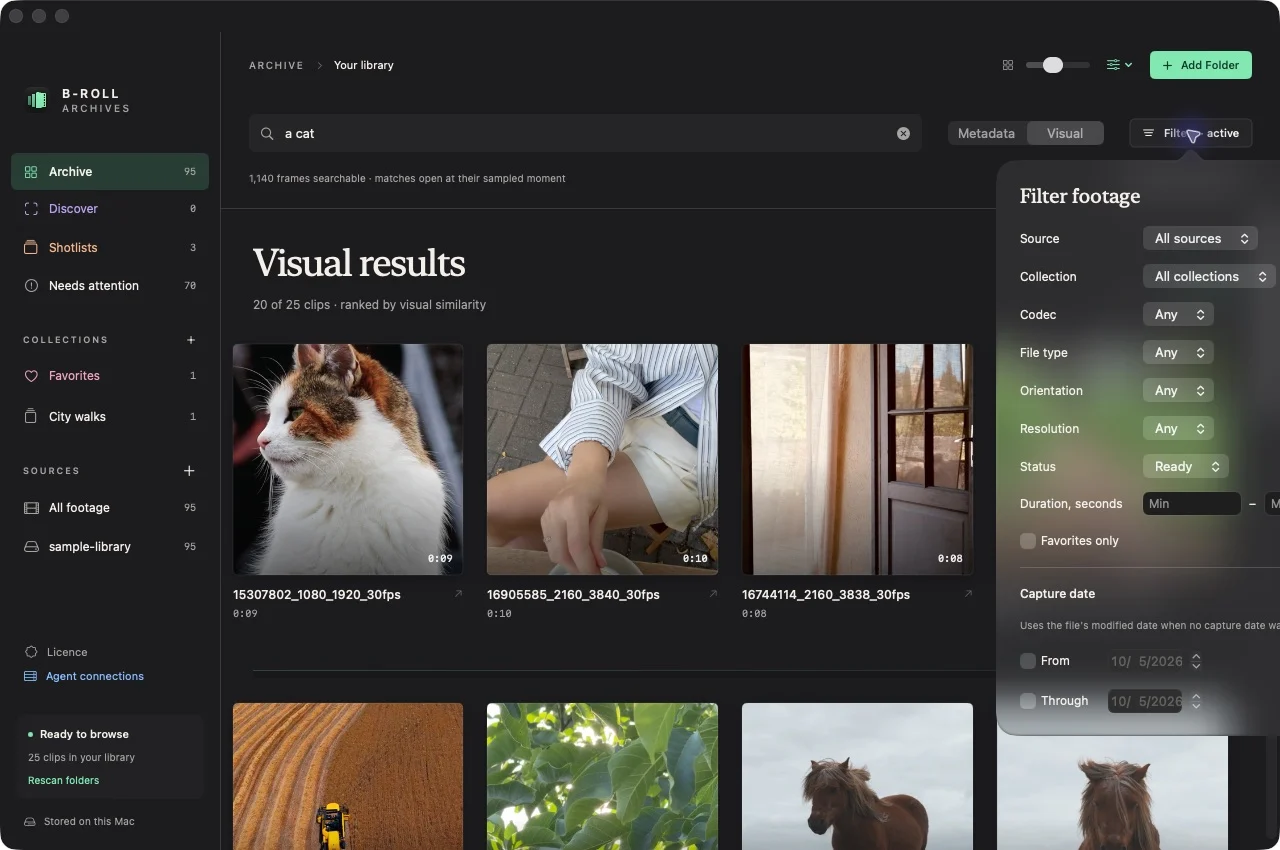
- Open Filters in the Archive toolbar.
- Choose a useful source, codec, file type, orientation, resolution, or status.
- Add duration bounds or a capture-date range if needed.
- Close the popover and inspect the narrowed results. Use Reset to remove filters.
Filters combine with metadata or visual search. An active filter indicator reminds you that the full library is not necessarily visible.
Interpret dates and missing fields
Capture-date filtering uses the file’s modification date when no capture time was recorded. Available camera and embedded metadata varies by source format and macOS media support.
Inspect a clip
Open a clip and scroll to Clip metadata below Look closer. Expand file, video, audio-track, or format sections to see the fields actually available. Technical details belong here when a cover and duration are enough for browsing.
Expected result: you can confirm a clip’s recorded dimensions, duration, codec, size, and other available details. A missing field is not a promise that the app can infer it.
If a search unexpectedly disappears, reset filters and confirm the source selection. See metadata search for text-query behavior.