
I shot about 80 clips around New York over six weeks. In one afternoon, an AI agent turned them into three finished, on-brand TikTok reels with text overlays and original audio. I didn’t open an editor once.
This post walks through exactly how to create TikTok reels using AI agents, with the real pipeline I used for Untourist, my NYC walking tour app. The short version: footage lands in a searchable library, the agent connects to that library over MCP, reads my brand context, proposes shotlists, and cuts the reels once I approve them.
I built B-Roll Archives, so weigh my enthusiasm accordingly. Everything below is what actually happened, including the parts that needed a second try.
TL;DR, the five steps:
- Shoot on iPhone.
- Footage syncs to Immich and gets indexed by B-Roll Archives.
- Give the agent your brand and audience context.
- The agent searches the library over MCP and builds shotlists.
- You approve; the agent cuts, captions and exports the reels.
The stack
Four pieces do the work: an iPhone, a self-hosted photo server, a searchable video library, and an AI agent that talks to that library over MCP.
- 01ShootiPhone, short vertical takes
- 02Back upImmich syncs originals to a local SSD
- 03IndexB-Roll Archives prepares frames and visual search
- 04BriefBrand, audience and posting rules
- 05SearchThe agent queries the library over MCP
- 06ShotlistOrdered shots with in-points and notes
- 07ApproveYou review the shotlists
- 08RenderThe agent cuts, captions and exports with ffmpeg
The only manual step after shooting is approving the shotlists. Everything upstream syncs on its own, and everything downstream is rendered by the agent.
Steps 1–2: Shoot on iPhone, let the library index itself
The agent can only edit what it can find, so the first job is getting footage into one searchable place without manual sorting.
- Capture: everything was shot on an iPhone 15 Pro and 15 Pro Max, mostly vertical, in short 3–30 second takes. Some clips were shot in Apple Log through the Blackmagic Camera app.
- Sync: the phone backs up to a self-hosted Immich server on a local 2 TB SSD. No exporting, no dragging files around. I wrote up the full setup in From iPhone to searchable B-roll with Immich.
- Index: B-Roll Archives uses that Immich folder as a connected source. It catalogs each clip, prepares a contact sheet and search samples roughly every five seconds, and builds visual search over them. When indexing finished, the library held 179 clips and about 3,800 searchable frames.
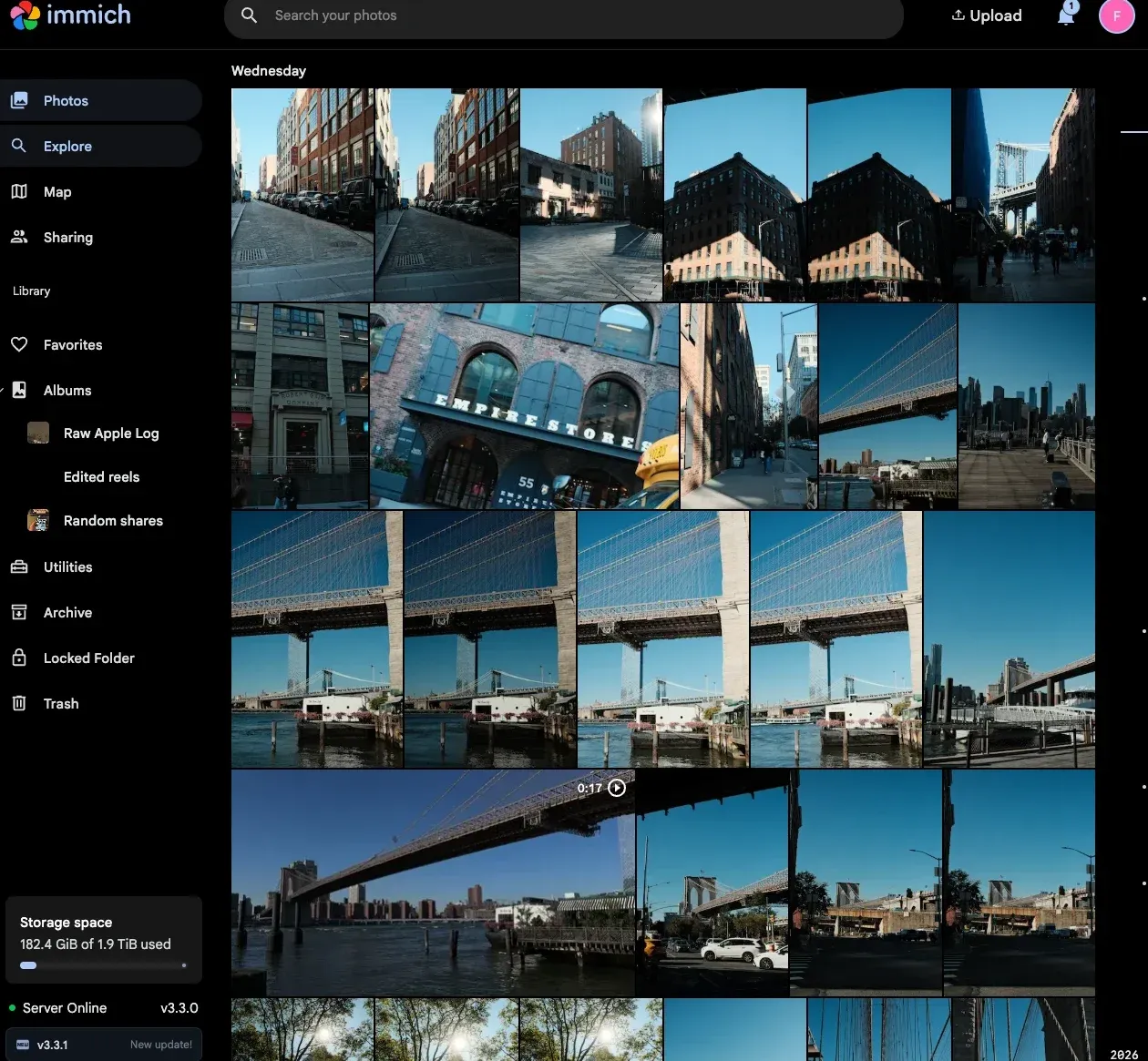
Because the iPhone embeds GPS, timestamps and lens data in every file, the library ends up knowing where and when each shot happened. That metadata turned out to be one of the agent’s most useful signals.
Step 3: Give the agent your brand context
An AI agent picking clips at random gives you a random reel. The prompt that made the difference was short: “Based on what you know about Untourist’s ICP, go through the footage and recommend three reels of 20–30 seconds each, with copy and captions.”
The agent already had my Untourist notes: who the audience is (curious first-time NYC visitors, not locals), the brand idea (the stories behind places you’ve walked past), the posting accounts and hashtag rules. That context shaped every later decision:
- Story over scenery: each reel needed a narrative arc, not a montage.
- Hooks for travelers: “zero tourist traps”, “most people stop at the arch”, “skip the bridge crowd”.
- Platform rules: five hashtags max,
#fypand#untouriston TikTok, no#fypon Instagram. - Visual style: I later shared one of our carousel posts, and the agent matched its type and boxed-text layout for the overlays.
If you try this, write your brand context down once and keep it where the agent can read it. A one-page note on audience, voice and posting rules is enough. The MCP prompts library has a reel-planning prompt you can adapt as a starting point.
Step 4: How the agent built shotlists over MCP
This is the core of creating TikTok reels with AI agents: the agent doesn’t watch hours of footage. It queries a library through tools, the way a developer queries an API.
Connecting. B-Roll Archives ships a small MCP bridge inside the app. One entry in Claude Desktop’s config (mcpServers → broll_archives) exposed tools like library_stats, search_library, get_contact_sheet, get_frame, get_clip_metadata and create_shotlist. The Claude setup guide has the exact config, and the MCP overview lists every tool. Once connected, the agent called library_stats to confirm the index was complete before doing anything else.
What the agent actually did:
- Mapped the library. A metadata search listed every clip with its path, duration and resolution. It noticed Immich stores originals plus 720p transcodes, and chose to work from the full-resolution originals.
- Probed with visual search. Queries like “New York City skyline”, “subway train station” and “historic brownstone street with trees” surfaced candidates. The similarity scores were low and noisy, so the agent treated search as a starting point, not an answer. (If you’re curious how those scores work, see finding video by description.)
- Looked at the footage. For each promising clip it pulled a contact sheet (12 frames in a grid) or a single frame. This is how it confirmed a rice-roll stall, a Mei Lai Wah pork bun, the Washington Square Arch and Cherry Lane Theatre.
- Used GPS and timestamps to find stories. Clips shot on the same day in the same area became one narrative: a Chinatown lunch at 12:39 p.m. ending at Brooklyn Bridge Park at sunset; a Greenwich Village walk from the arch to Commerce Street; a crowded Brooklyn Bridge contrasted with quiet Park Slope.
- Wrote shotlists back into the app. Using
create_shotlist, it saved three ordered lists with exact in-points, durations and a note per shot (“HOOK: pork bun held to camera”). Each list ran 28–29 seconds. - Drafted the copy. For each reel: on-screen text by timestamp, a caption, and platform-specific hashtags.
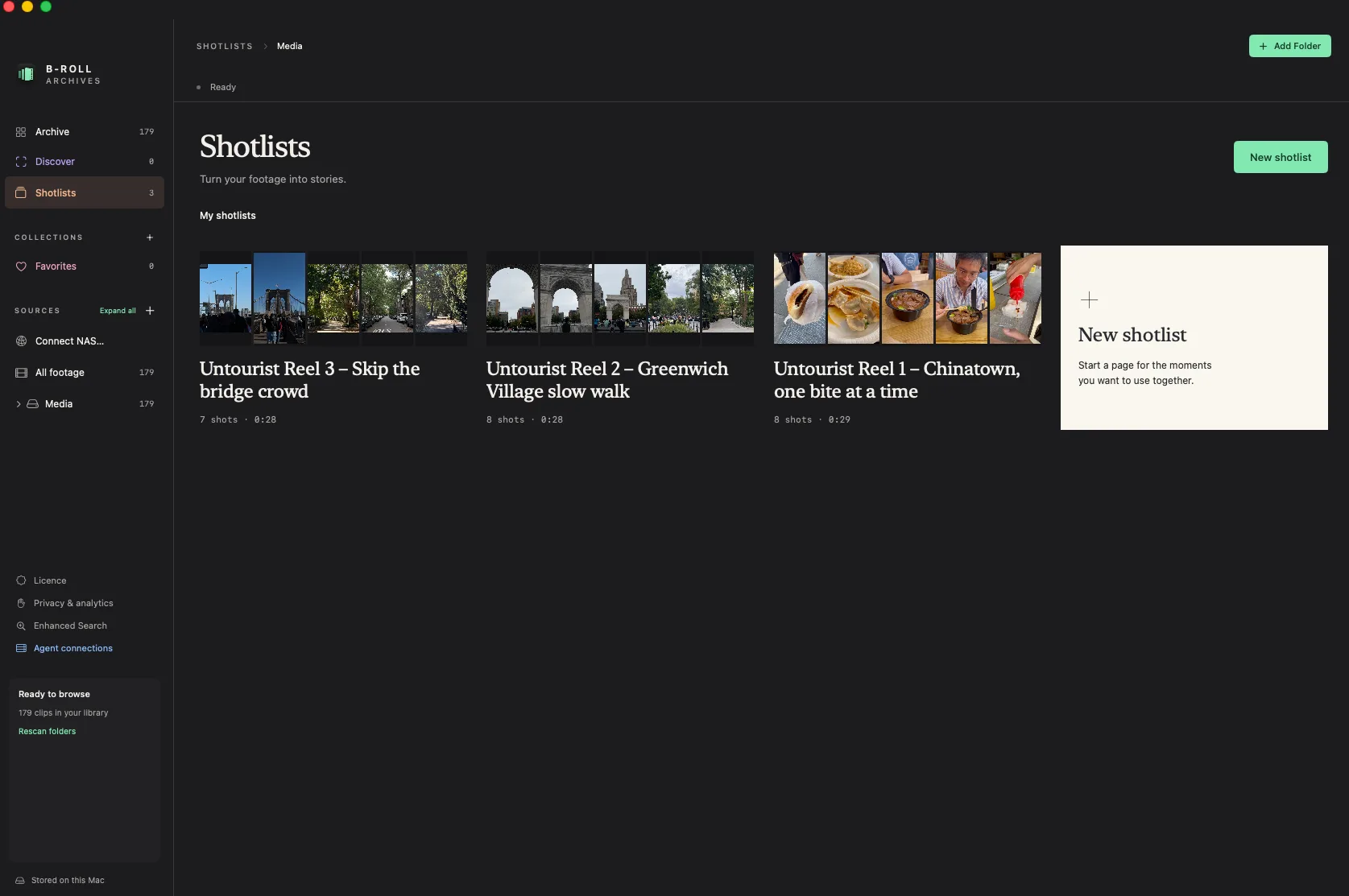
Nothing in the source library was modified. The shotlists are just references (clip ID, start time, duration) that I could review on the Shotlists screen in B-Roll Archives, shown at the top of this post.
Step 5: Approve, then let the agent cut the reel
Once I approved the shotlists, the agent turned them into finished vertical videos. B-Roll Archives doesn’t export video, so the agent copied only the 22 source clips it needed from my drive and edited them with ffmpeg in its own workspace.
| Reel | Story | Length | Shots |
|---|---|---|---|
| Chinatown, one bite at a time | Lunch crawl to a Brooklyn sunset | 29.2s | 8 |
| Greenwich Village, slowed down | Washington Square to Cherry Lane Theatre | 28.5s | 8 |
| Skip the bridge crowd | Brooklyn Bridge crowds to quiet Park Slope | 28.0s | 7 |
What the edit involved:
- Trim and conform: each shot cut to its in-point and duration, cropped to 1080×1920, and set to 30fps (some clips were shot at 24fps).
- Branded text overlays: rendered as images in our carousel style (Oswald, uppercase, white on translucent rounded boxes), then timed to the second over the video.
- Original audio kept: clip sound runs underneath, with a short fade at each cut, so I can mute it for a cinematic edit or keep it for an ASMR-style post.
- Checked before delivery: the agent pulled frames from each finished reel to confirm text sat on the right shots, then saved the MP4s to an outputs folder on my drive.
The first render used a substitute font because the agent’s sandbox couldn’t download Oswald. I dropped the font files into the media folder, and it re-rendered all three in a few minutes.
The finished reels
Here are two of the three reels exactly as the agent rendered them. I haven’t re-edited them, and they keep the original clip audio.
Guardrails and lessons learned
The workflow is fast, but a few rules keep the output trustworthy.
- Keep a human approval step. The agent proposes shotlists; you approve before anything is rendered. That’s where taste lives.
- Filter out ungraded footage. Apple Log clips look flat until they’re color graded. The agent finds them by a metadata tag (
com.apple.rec2020.apple-log) and leaves them out of every shotlist. It also skips the Immich 720p copies of those clips, which don’t carry the tag. Connecting only Immich’s originals folder, as described in the Immich setup post, avoids most of those duplicates in the first place. - Only name what the camera shows. The agent named Mei Lai Wah and Cherry Lane Theatre because their signs were on screen, and flagged facts (like Cherry Lane’s 1924 founding) for me to verify rather than presenting them as certain.
- Search is a lead, not a verdict. Visual similarity scores were noisy. Looking at real frames is what made the shot choices good.
- Watch where outputs land. Saving reels inside the indexed media folder means they reappear in the library on the next rescan. Use a separate outputs folder or exclude it.
FAQ: creating TikTok reels with AI agents
Can an AI agent really edit TikTok videos? Yes, if it has two things: a way to search and see your footage (here, an MCP connection to a video library) and a way to render video (here, ffmpeg). The agent picks shots, trims, crops to 9:16, adds text and exports an MP4.
What is MCP and why does it matter for video? The Model Context Protocol lets an AI agent call tools in your apps. For video, it means the agent can query a library of thousands of frames instead of you uploading clips into a chat. B-Roll Archives runs its MCP server locally on your Mac and also works with Codex and Hermes.
Do I need to upload my footage to the cloud? Not all of it. The library and index stay on your own drive. In this workflow, only the 22 clips used in the final reels were copied to the agent’s workspace for rendering.
Does the AI agent add music? In this workflow, no. Reels keep the original clip audio, and trending sounds are added by hand in TikTok or Instagram, where licensed music lives.
How long does it take? From first prompt to three finished reels took one working session, including two rounds of revisions (font and audio).
Try it yourself
If you want an AI agent that can search your own footage, B-Roll Archives indexes your local video library and connects to Claude over MCP. Download it, connect a folder, and start with the MCP overview. And if you’re visiting New York, the reels in this post are previews of the routes on Untourist.