
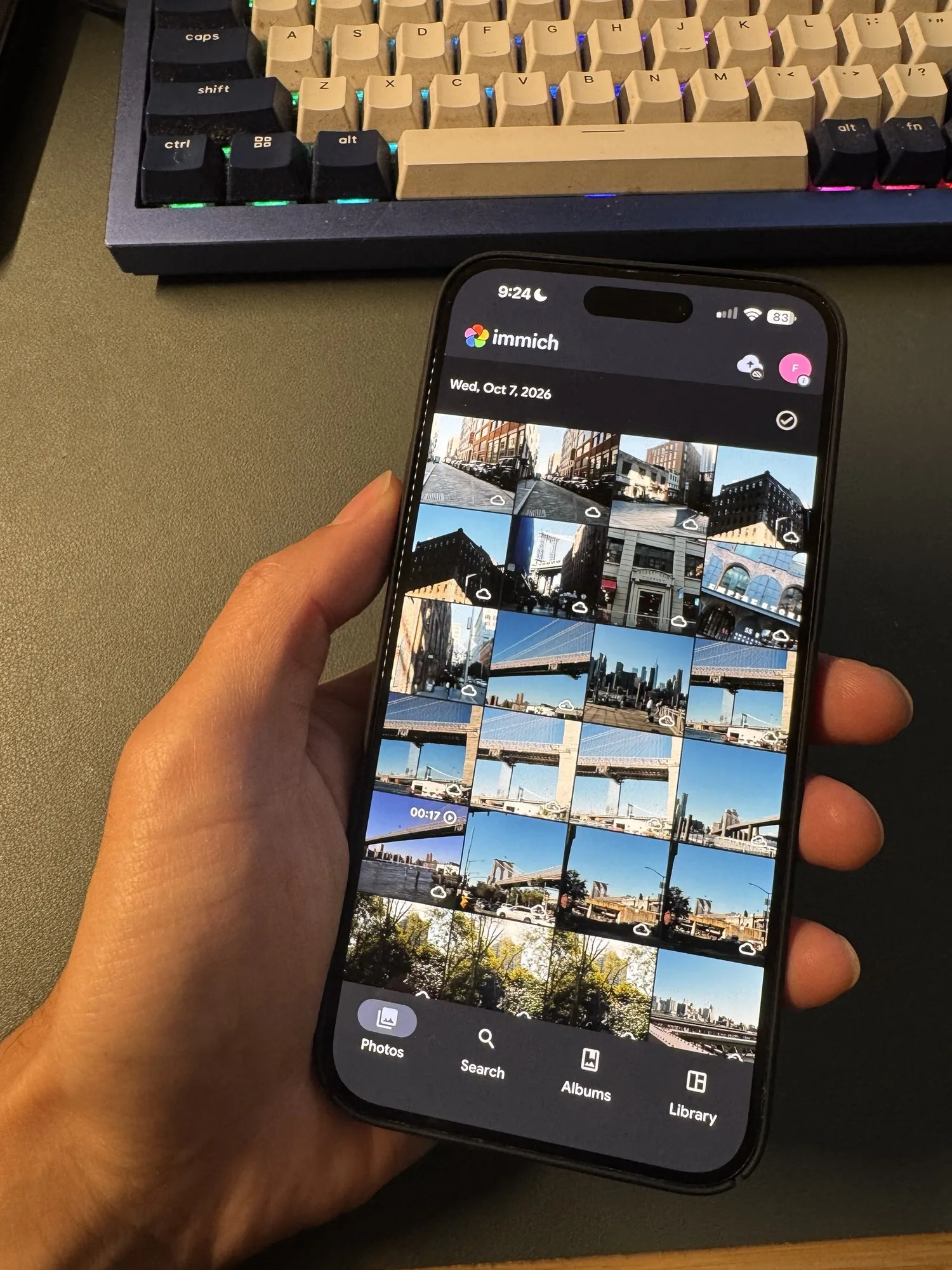
My iPhone is the camera I always have with me, so it is where most of my B-roll comes from. The workflow that finally made those clips easy to reuse is simple: Immich backs up everything from my phone to an SSD attached to my Mac, and B-Roll Archives reads Immich’s library folder in place. I shoot, the phone backs up, I rescan, and the new clips are searchable by what is in them. There is no exporting, no AirDrop, and no copying folders around.
I built B-Roll Archives, so take the enthusiasm with that in mind. But this setup is the one I use every day, and it works well enough that I wanted to write down exactly how it fits together, including the places where you can get it wrong.
The problem with phone footage
Phone videos pile up quietly. A few seconds of rain on a window, a dog on the beach, a street at night. Each one might be useful in an edit months later, but they end up mixed in with screenshots and family photos, named IMG_2636.mov, in a camera roll or a cloud library that is awkward to browse as footage.
A photo app is designed for memories: scrolling by date, faces, places, albums. When I am editing, I need something different. I want to see what happens inside each clip, filter by orientation or duration, and search for “a dog on the beach” without remembering which day I filmed it.
My setup
- iPhone. The Immich app backs up photos and videos in the background.
- Immich. It runs in Docker on my Mac, with its upload location on an external 2 TB SSD. Immich keeps the original files and organizes them with its storage template, so they land in dated folders such as
library/<user>/2026/09/25/IMG_2636.mov. - B-Roll Archives. The same Mac has Immich’s
library/<user>/folder connected as a source. The app reads the videos where they are and prepares contact sheets, metadata, and a visual-search index on the Mac.
Most of my iPhone clips are HEVC in a MOV container, which is one of the combinations confirmed in testing on our supported formats page. A few are H.264. Most are between two and twenty seconds long, which is exactly the kind of footage that is hard to find by filename and easy to find by description.
Why the two apps fit together
Immich and B-Roll Archives each do one job and stay out of each other’s way.
Immich handles getting footage off the phone: automatic background backup that skips files it already has, and a stable home for the originals. It is also a good photo app for everything that is not B-roll.
B-Roll Archives treats that folder as a footage library. Each clip gets a twelve-frame contact sheet, so I can see what happens across the clip, not just its first frame. I can filter by duration, orientation, resolution, codec, or capture date, and search by visual description. Opening a result plays the original from the matching moment.
Neither app copies the other’s files. B-Roll Archives reads the originals in place and keeps its previews in its own storage on the Mac, so the Immich library stays exactly as Immich expects it.
How to set it up
- Turn on Immich’s storage template (recommended). In Immich, go to Administration → Settings → Storage Template. With it on, originals are stored in readable dated folders under
library/. The default pattern is year, then year-month-day, then the original filename. Without it, originals live underupload/in paths that are harder to browse yourself. - Find your upload location. This is the folder you set as
UPLOAD_LOCATIONwhen you installed Immich. Inside it you will see folders such aslibrary,upload,thumbs, andencoded-video. - Connect only the originals. In B-Roll Archives, choose Add Folder and select
library/<your user>/, orupload/<your user>/if the storage template is off. Do not select the whole upload location (see below). - Prepare the library. Let the app read the clips and build their contact sheets, then choose Visual in the search toolbar and Prepare visual search. Both steps run locally and can be paused and resumed.
- Search. Try a description of something you know you filmed. The visual-search walkthrough explains how to read the results.
Mistakes to avoid
Don’t connect the whole Immich folder. The upload location also contains encoded-video/, where Immich keeps re-encoded copies of videos for playback in its apps. In my library that is 78 MP4 files with UUID names. Connect the root and B-Roll Archives catalogs every one of them as a duplicate clip. Connecting library/<user>/ avoids that. (The thumbs/ folder only contains images, so it is not scanned anyway.)
Don’t edit, move, or rename files inside Immich’s folders. Immich’s own backup documentation says not to touch those files except to back them up. B-Roll Archives only reads them, which is why this works. Rename or reorganize in Immich, not in Finder.
Rescan after new uploads. B-Roll Archives does not watch folders continuously. After the phone has backed up, choose Prepare / Rescan or press ⌘R. Preparation is incremental, so only the new and changed clips are processed.
Changing the storage template moves files. If you switch the template on or change its pattern, Immich’s migration job moves existing originals to new paths. B-Roll Archives sees those paths on the next rescan, so expect some re-preparation.
Deleting in Immich removes the clip. Once Immich has actually deleted a file, the next complete rescan removes that clip from B-Roll Archives too, along with its cached previews.
Keep a real backup. Immich is where the originals live, not a backup of them. B-Roll Archives’ previews are not a copy of your videos either. Back up the upload location separately.
Network storage is unverified. My Immich runs on the same Mac as B-Roll Archives, with the SSD attached directly. If Immich runs on a NAS and you mount its library over SMB, the app has a path for that, but real network-share behavior has not been verified yet. See the FAQ before relying on it. B-Roll Archives also requires an Apple Silicon Mac.
What my day-to-day looks like
I film something on my phone. By the time I sit down at the Mac, Immich has backed it up. I press ⌘R in B-Roll Archives, and once the new clips are prepared they have contact sheets and are searchable.
When I am editing and need a cutaway, I search for what I remember, such as “a dog on the beach”, then filter to vertical clips under ten seconds. I check the frames, play from the matched moment, and choose Reveal in Finder to drag the original into my edit.
The phone is still just a phone, and Immich is still my photo library. The difference is that everything I film becomes footage I can find again. I’ve since taken this a step further and had an AI agent turn the same library into finished TikTok reels.