Choose a video organizer for Mac by starting with how you will look for footage, not with a feature list. If you mostly browse current project folders, Finder and a good previewer may be enough. If your archive lives on drives that are usually unplugged, you need a catalog. If you remember shots by what was in them rather than by filename, you need some form of visual or content search.
Most people need a combination. The useful question is which retrieval problem costs you the most time today.
Name the retrieval problem first
Think about the last few times you looked for a clip and struggled. The difficulty usually falls into one of four kinds:
- Browsing folders. You know roughly where the footage is and want to see it quickly without opening every file.
- Cataloging disconnected drives. The footage is on a drive in a drawer, and you need to know which drive before plugging anything in.
- Inspecting clips. You need technical facts: duration, resolution, codec, frame rate, orientation, or date.
- Searching by subject. You remember the shot (“a cat on a porch”, “waves at sunset”) but not the filename, folder, or project.
Write down which of these you hit most often. It keeps you from paying for capabilities you will not use, or adopting a tool that solves a different problem very well.
Questions to ask any video organizer
Use the same questions for every tool you evaluate:
- How does it find footage? Folder navigation, filename and metadata search, keywords you add yourself, automatic tagging, or search by visual description.
- What happens to the originals? Does it read files where they are, or import, copy, or move them into its own library? Reading in place keeps your folder structure and backups as they are.
- Does it work when a drive is disconnected? Some tools keep previews and metadata in a catalog; others only show what is currently mounted.
- What does it show you inside a clip? A single thumbnail, a few sampled frames, or a scrubbable contact sheet changes how quickly you recognize footage.
- Is it compatible with your files and Mac? Check the containers and codecs you actually shoot, and the processor and macOS version you run.
- How is it licensed? Free, one-time purchase, or subscription, and how many Macs one licence covers.
Answer these from the vendor’s current documentation and a trial with your own footage. A short trial on one real drive tells you more than any comparison article, including this one.
How common approaches fit
The tools below take different approaches. The notes reflect each vendor’s official pages as checked on October 8, 2026; features and pricing change, so confirm the details before you decide.
| Approach | Good fit when | Keep in mind |
|---|---|---|
| Finder and QuickTime Player (built into macOS) | You browse mounted folders and only occasionally need a file’s properties. | No catalog of disconnected drives, and no search by what is in the shot. |
| Adobe Bridge | You want a free asset browser with labels, ratings, keywords, collections, and metadata editing, especially alongside other Adobe apps. | Organization depends largely on keywords and metadata you add; check Adobe’s system requirements for video workflows on your Mac. |
| NeoFinder | You need to catalog many drives and search them while they are offline. It reads video dimensions, duration, and codec, and can store a small four-frame contact sheet per clip. | Its catalog is built for finding which drive holds a file; check its trial limits and licence terms. |
| Peakto | You want one AI-assisted library across photos and videos, with natural-language search, dialogue search, and local analysis. | Covers photos and video together; plans and Pro team features are listed on the vendor’s store. |
| B-Roll Archives | You want to find video by what is in the shot, inspect sampled moments, and play the original from that timestamp, with originals left in place. | Video only (MOV, MP4, and M4V are scanned); requires an Apple Silicon Mac; no contact-sheet export or editing timeline. |
None of these is the best choice for everyone. Several of them, not only B-Roll Archives, catalog footage without moving the originals.
Comparisons: if you were looking at a Windows tool, see the Fast Video Cataloger alternative for Mac.
Built-in tools cover more than you might expect
Before installing anything, try what macOS already provides. Finder’s gallery and column views show previews, and Get Info shows a file’s size and dates, with dimensions and duration under More Info when macOS can read them. QuickTime Player’s Movie Inspector shows the compression format, size, and frame rate of an open clip. The guide to viewing video metadata on Mac explains what those properties mean when you are trying to narrow a library.
What built-in tools do not provide is memory of footage you cannot currently see: drives that are disconnected, or moments buried in the middle of long clips. That is usually the point at which a dedicated organizer earns its place.
Where B-Roll Archives fits
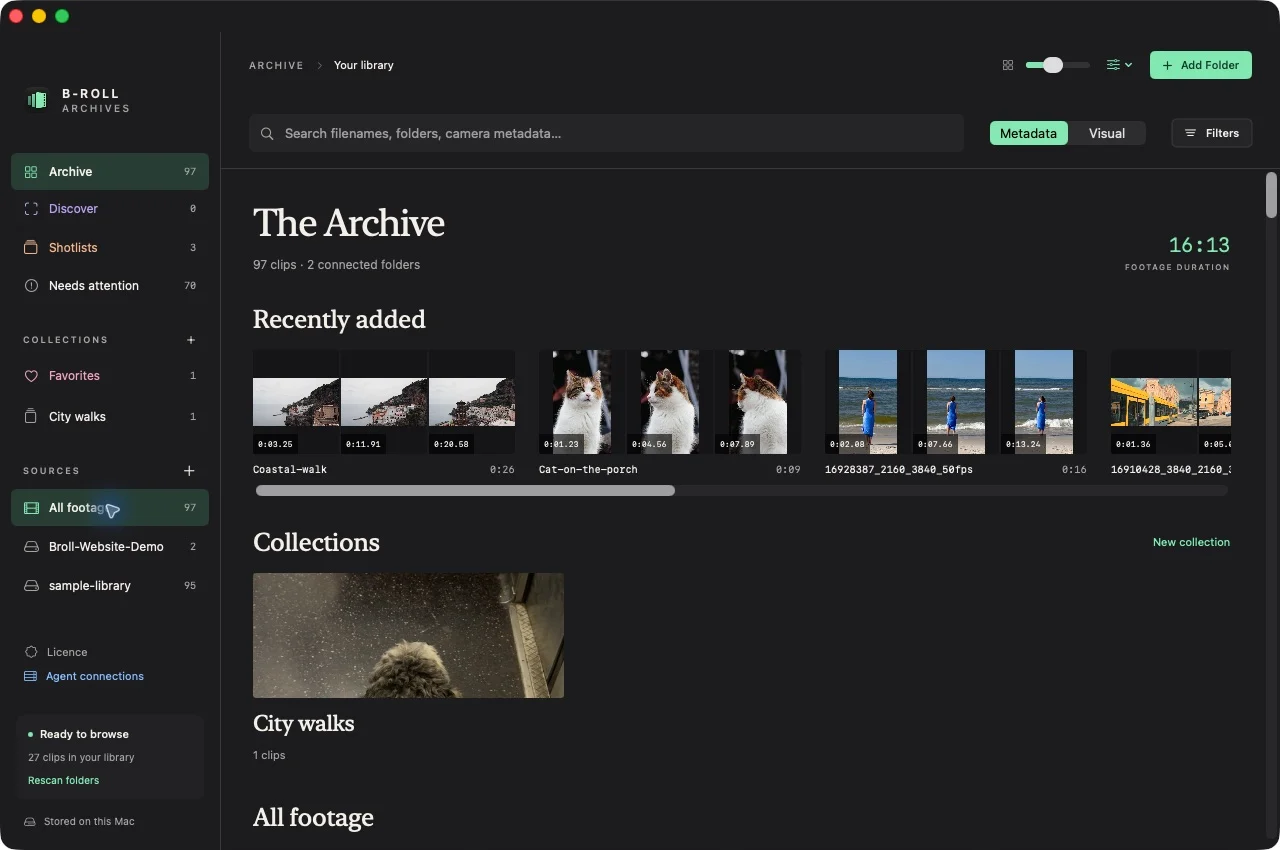
B-Roll Archives is a native Mac app for retrieving footage you already filmed. You connect folders or drives, and the app reads the files in place. It prepares a twelve-frame contact sheet for each readable clip and caches it on your Mac, so prepared footage stays recognizable when a drive is unplugged.
You can search filenames and metadata, filter by source, codec, orientation, resolution, duration, or capture date, and search by visual description. The visual index samples each clip approximately every five seconds and runs locally on Apple Silicon. Selecting a frame opens original-file playback at that moment. When the drive is disconnected, reconnect it to play the clip.
It is a retrieval tool, not a full digital asset manager. It does not rename or move files, export contact sheets, manage team permissions, or replace your backups. A free preview unlocks three clips for seven days; one-time licences cover one, two, or five Macs.
If searching by subject is your main problem, the walkthrough on finding a video by describing what’s in it shows the workflow from preparation to playback.
Make the decision with your own footage
Pick the retrieval problem you hit most often, shortlist two tools that address it, and try each on the same real drive. Search for three clips you remember well and one you only vaguely remember. Note how long each search takes and whether you could get back to the original file.
Whichever tool you choose, keep a reliable home for the originals. The guide to organizing video files on Mac covers the folder habits that make any organizer more useful.